> ## Documentation Index
> Fetch the complete documentation index at: https://docs.double.bot/llms.txt
> Use this file to discover all available pages before exploring further.
# Key Bindings
Skip the mouse and stay on the keyboard.
`⌥ + J` -- Starts a new chat conversation with the AI, and adds highlighted code, if any.
`⌥ + K`-- Focused on the current chat conversation, and adds highlighted code, if any.
`⌥ + L` -- Generates an autocomplete suggestion mid-line.
`Alt + J` -- Starts a new chat conversation with the AI, and adds highlighted code, if any.
`Alt + K` -- Focused on the current chat conversation, and adds highlighted code, if any.
`Alt + L` -- Generates an autocomplete suggestion mid-line.
***
### Personalization
If you'd like to reconfigure the default key bindings, or if you have an international keyboard layout that may not be compatible with the default key bindings, you can do so by:
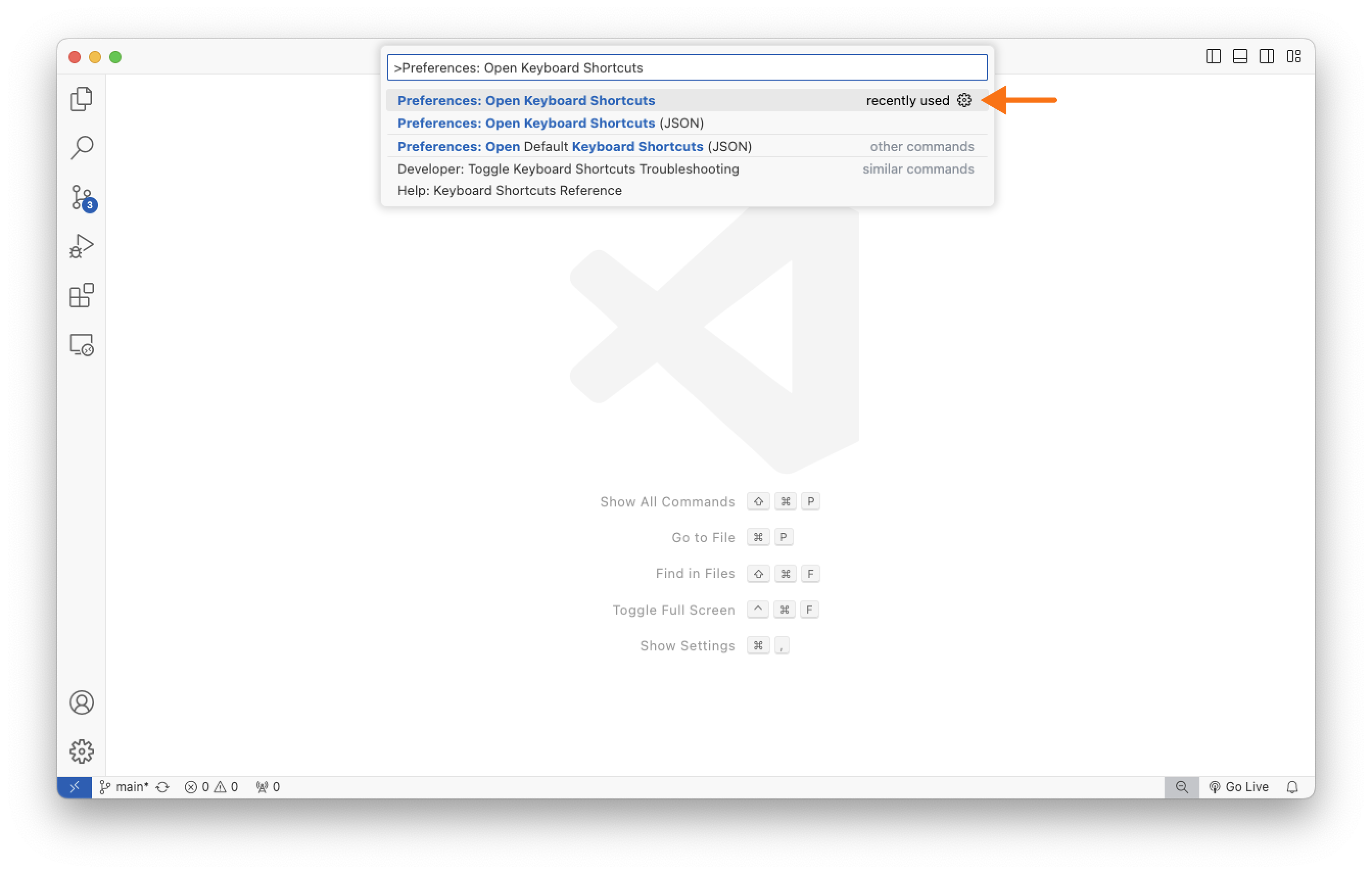
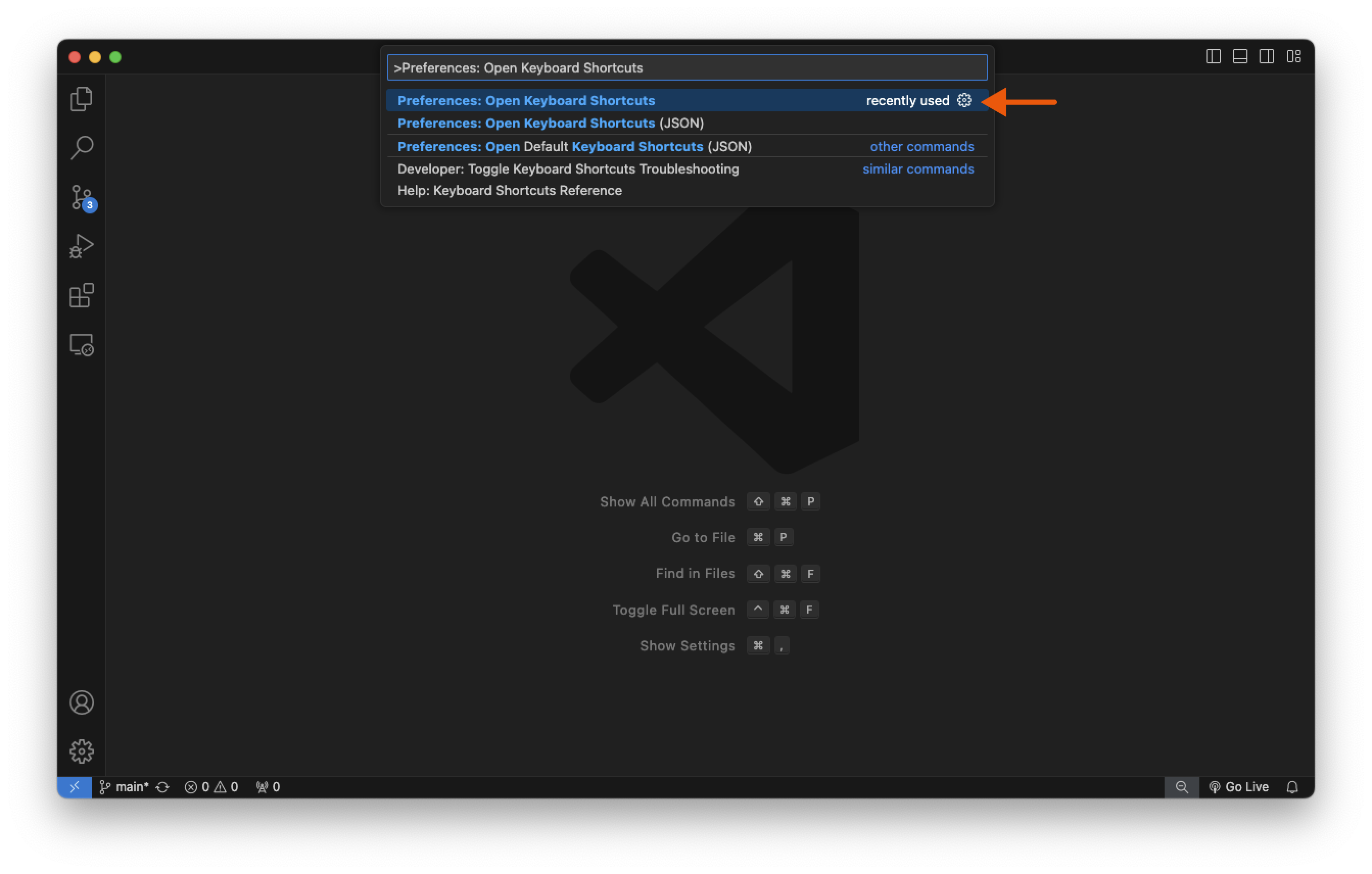
In VS Code, open the Command Palette (`Ctrl + Shift + P` on Windows/Linux or `⌘ + Shift + P` on Mac).
Type `Preferences: Open Keyboard Shortcuts` and press `Enter`.
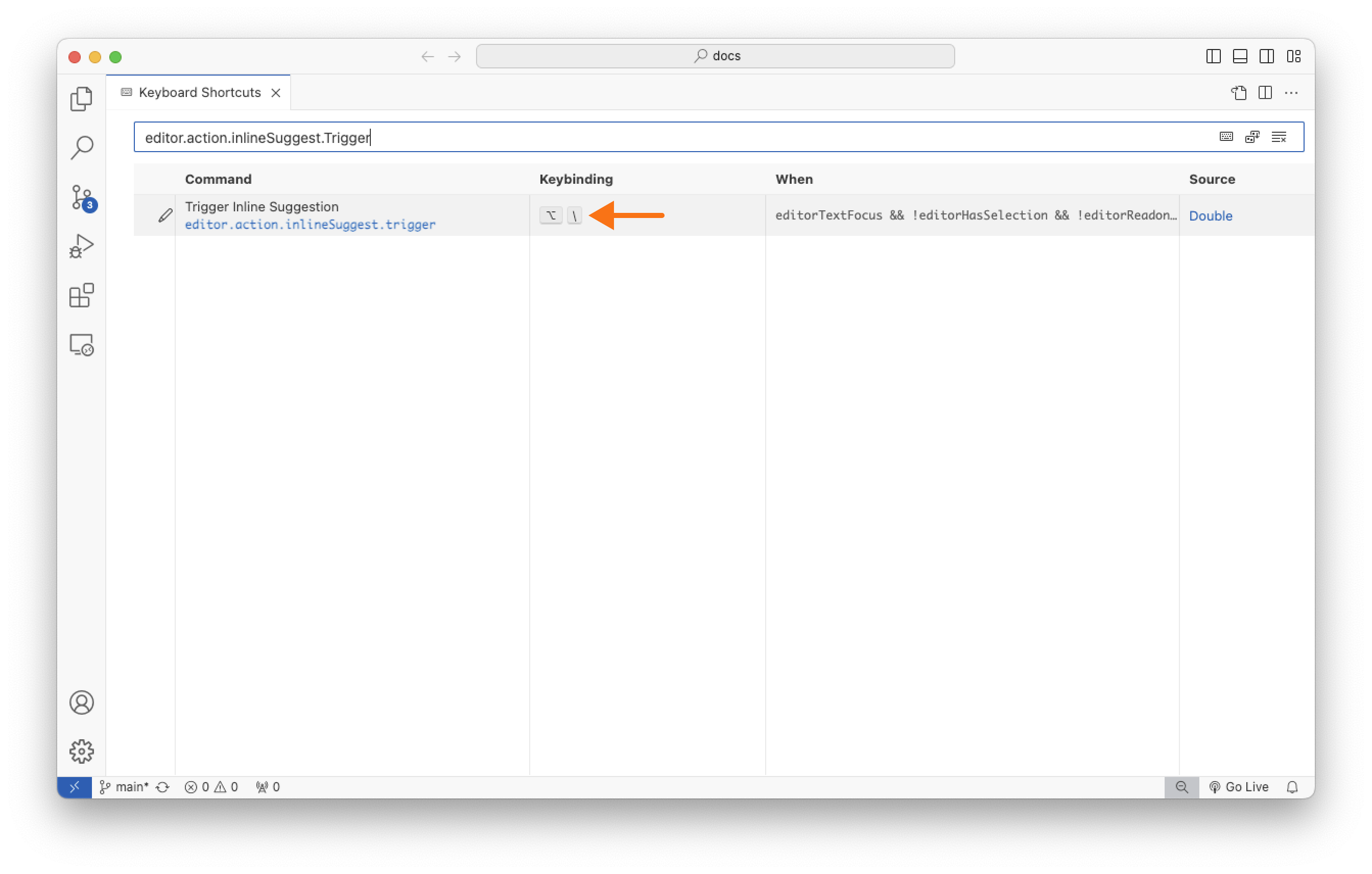
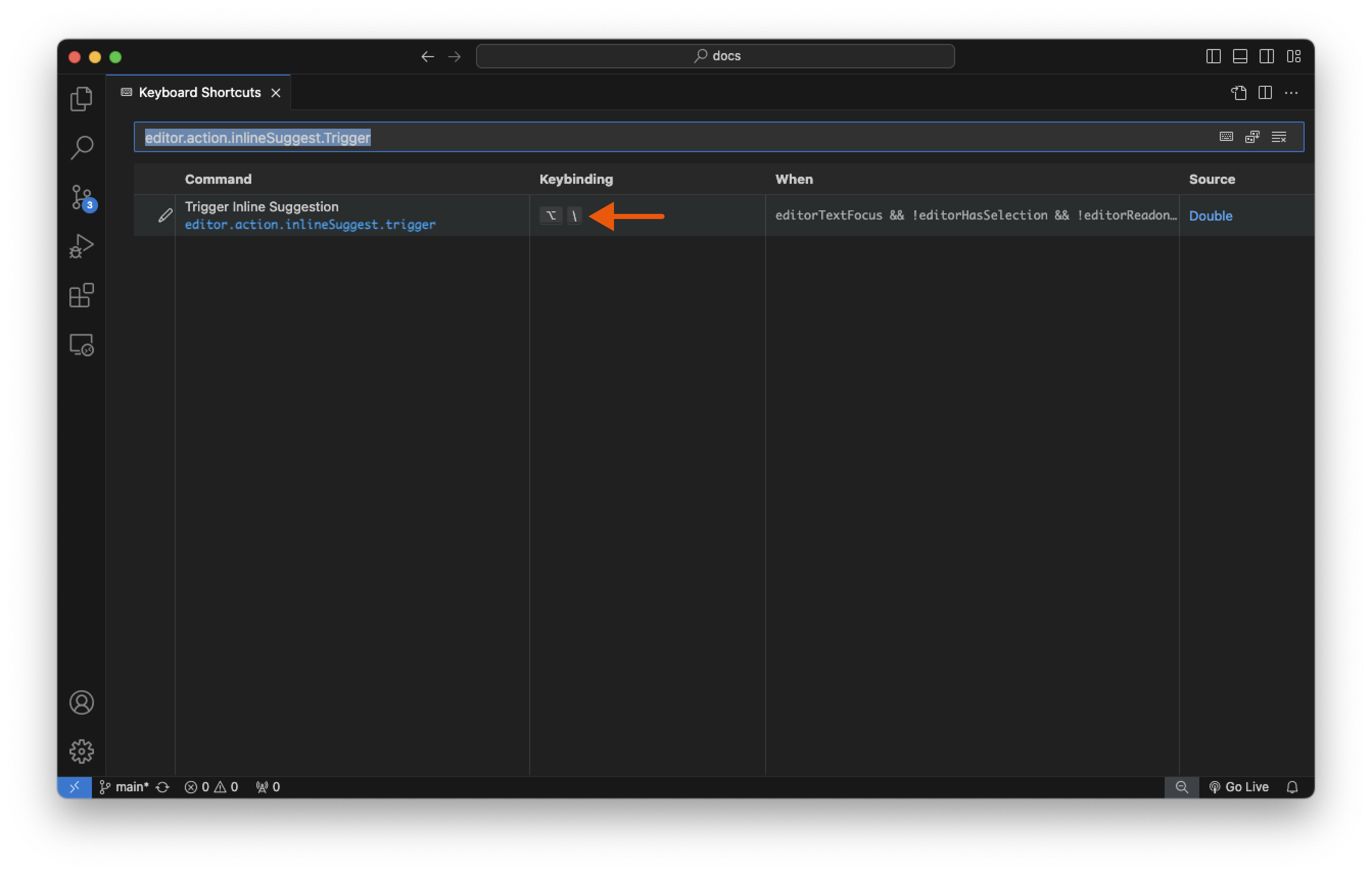
 Search for the command you want to remap and double-click on it to remap it.
 Below a list of all of the relevant commands you may want to replace:
`editor.action.inlineSuggest.trigger` -- For the mid-line autocomplete suggestion.
`doublebot.newConvo` -- For starting a new chat conversation with the AI.
`doublebot.addSelectionToNewConvo` -- For starting a new chat conversation with the AI including the highlighted code.
`doublebot.addselectionToChat` -- For adding the highlighted code to the current chat conversation.
`doublebot.focusCurrentChat` -- For focusing on the current chat conversation.
There are additional commands that have no default keybinding but may want to enable for your convenience:
`doublebot.nextConvo` -- For navigating to the next chat conversation.
`doublebot.prevConvo` -- For navigating to the previous chat conversation.
Below a list of all of the relevant commands you may want to replace:
`editor.action.inlineSuggest.trigger` -- For the mid-line autocomplete suggestion.
`doublebot.newConvo` -- For starting a new chat conversation with the AI.
`doublebot.addSelectionToNewConvo` -- For starting a new chat conversation with the AI including the highlighted code.
`doublebot.addselectionToChat` -- For adding the highlighted code to the current chat conversation.
`doublebot.focusCurrentChat` -- For focusing on the current chat conversation.
There are additional commands that have no default keybinding but may want to enable for your convenience:
`doublebot.nextConvo` -- For navigating to the next chat conversation.
`doublebot.prevConvo` -- For navigating to the previous chat conversation.