> ## Documentation Index
> Fetch the complete documentation index at: https://docs.double.bot/llms.txt
> Use this file to discover all available pages before exploring further.
# Inline Edit (preview)
This feature is currently in *preview*, meaning you may encounter rough edges as we continue to develop it. [Send us your feedback!](mailto:help@double.bot)
Inline Edit allows you to instruct the AI on what changes to make to your code, and then review its proposed changes in differential style, all within your editor. To get started:
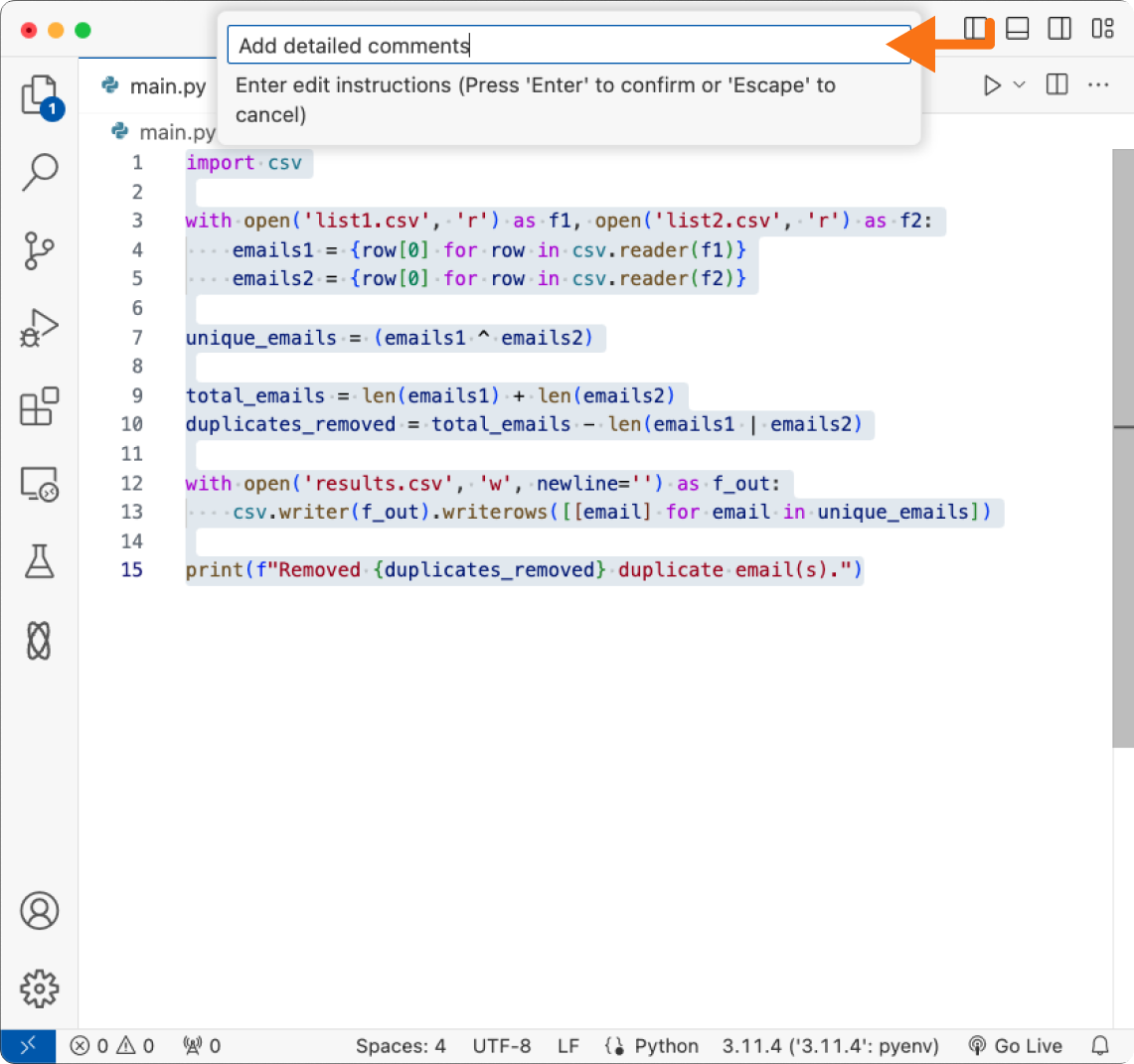
Begin by highlighting the code you want to edit. You can highlight every line in a file, or even just a single character.
After you've made your selection, press `Option+O` (Mac) or `Alt+O` (Windows) to trigger an Inline Edit.
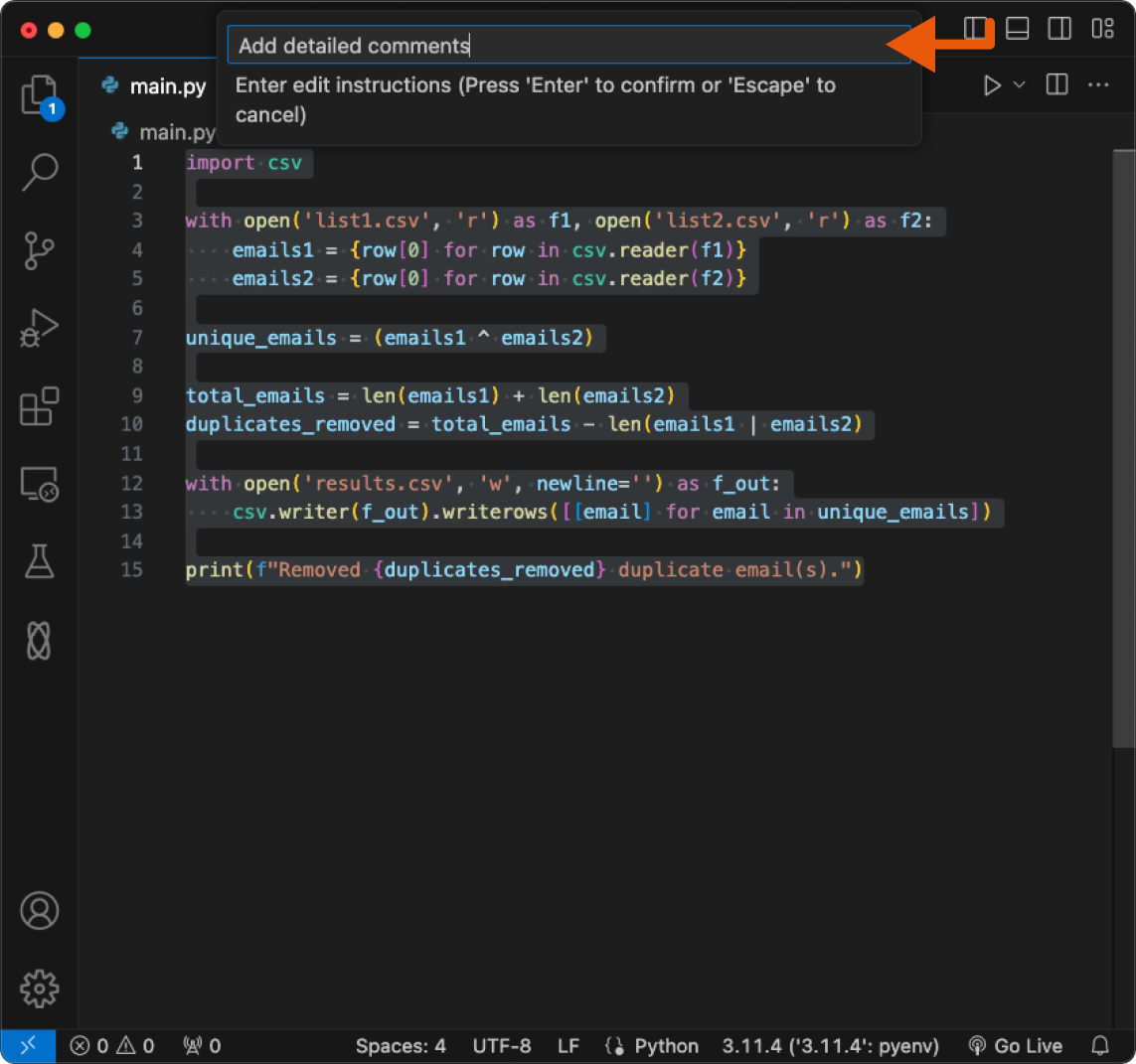
A new text bar will appear at the top of your editor. This is where you can give instructions to Double.
When you are done typing, press `Enter` to submit your instructions.
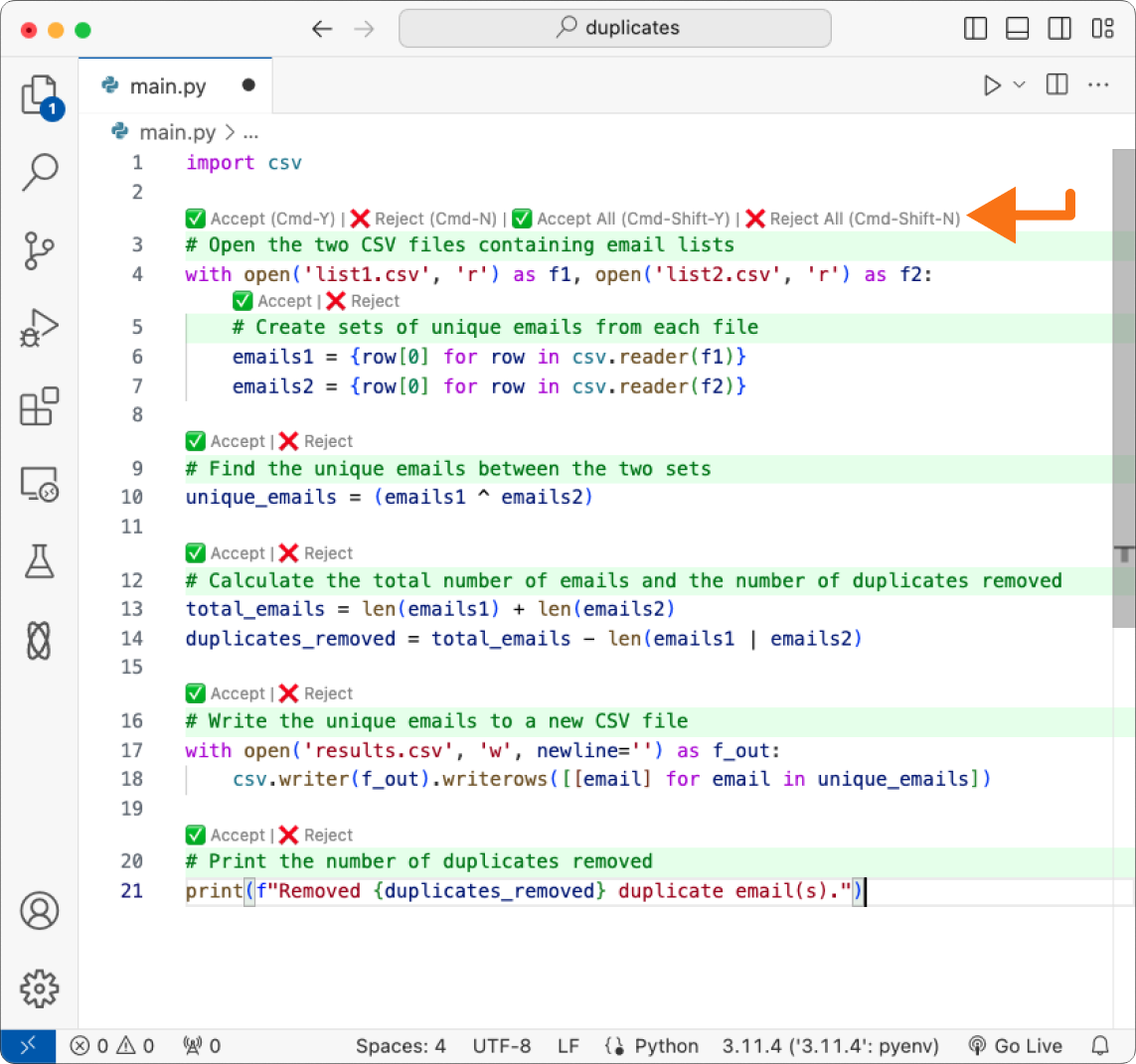
 The changes to your code will be presented in differential style. Lines of code added will be highlighted in green, and lines of code removed will be highlighted in red.
You can accept all or reject all of the changes by clicking on `Accept All` or `Reject All` buttons at the top of the editor, or with the `Cmd+Shift+Y` and `Cmd+Shift+N` keyboard shortcuts.
Alternatively, you can accept or reject individual changes by clicking individually on the `Accept` or `Reject` buttons next to each change, or with the `Cmd+Y` and `Cmd+N` keyboard shortcut from top to bottom.
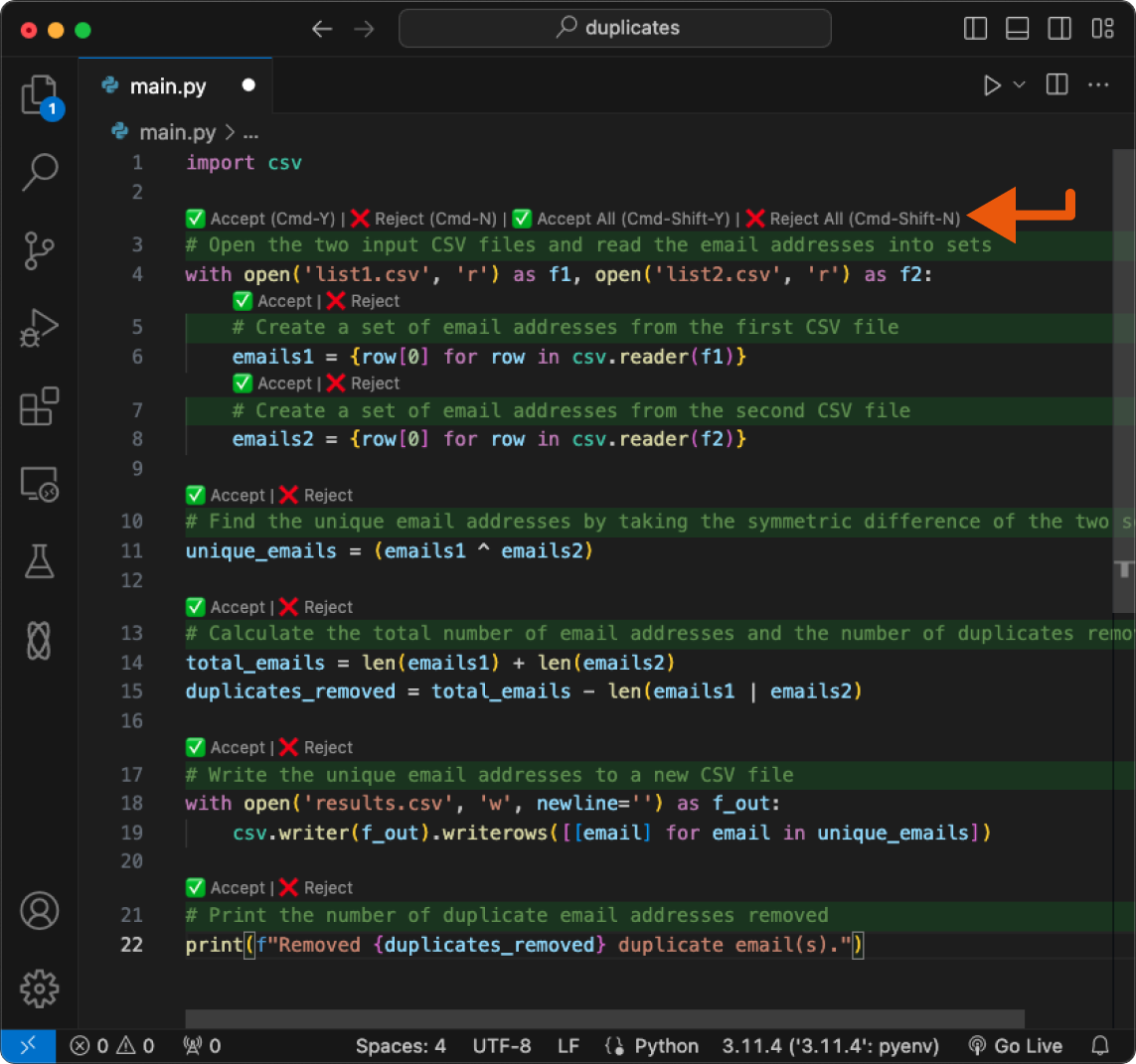
The changes to your code will be presented in differential style. Lines of code added will be highlighted in green, and lines of code removed will be highlighted in red.
You can accept all or reject all of the changes by clicking on `Accept All` or `Reject All` buttons at the top of the editor, or with the `Cmd+Shift+Y` and `Cmd+Shift+N` keyboard shortcuts.
Alternatively, you can accept or reject individual changes by clicking individually on the `Accept` or `Reject` buttons next to each change, or with the `Cmd+Y` and `Cmd+N` keyboard shortcut from top to bottom.