> ## Documentation Index
> Fetch the complete documentation index at: https://docs.double.bot/llms.txt
> Use this file to discover all available pages before exploring further.
# CodeSnap
[CodeSnap](features/codesnap) lives inside of the [Chat](features/chat) sidebar, it appears whenever the AI generates a code snippet, either as a change to your existing code or entirely new code.
When you click the [CodeSnap](features/codesnap) bolt icon, it intelligently applies the edits into the current file and highlights the changes in diff style for you to approve.
### CodeSnap in action
Start by asking the [Chat](features/chat) to make a change to an existing file, or to generate code from scratch.
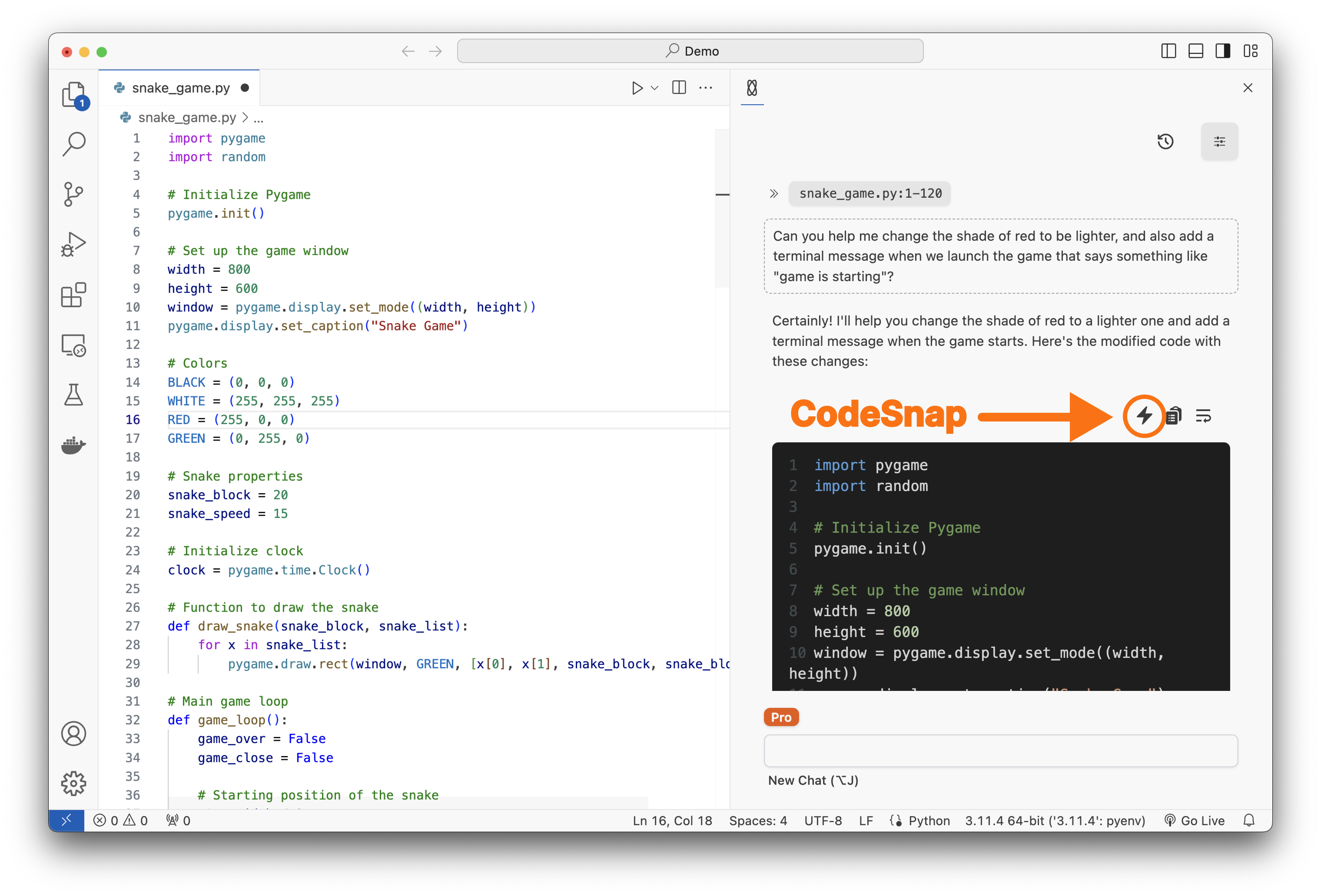
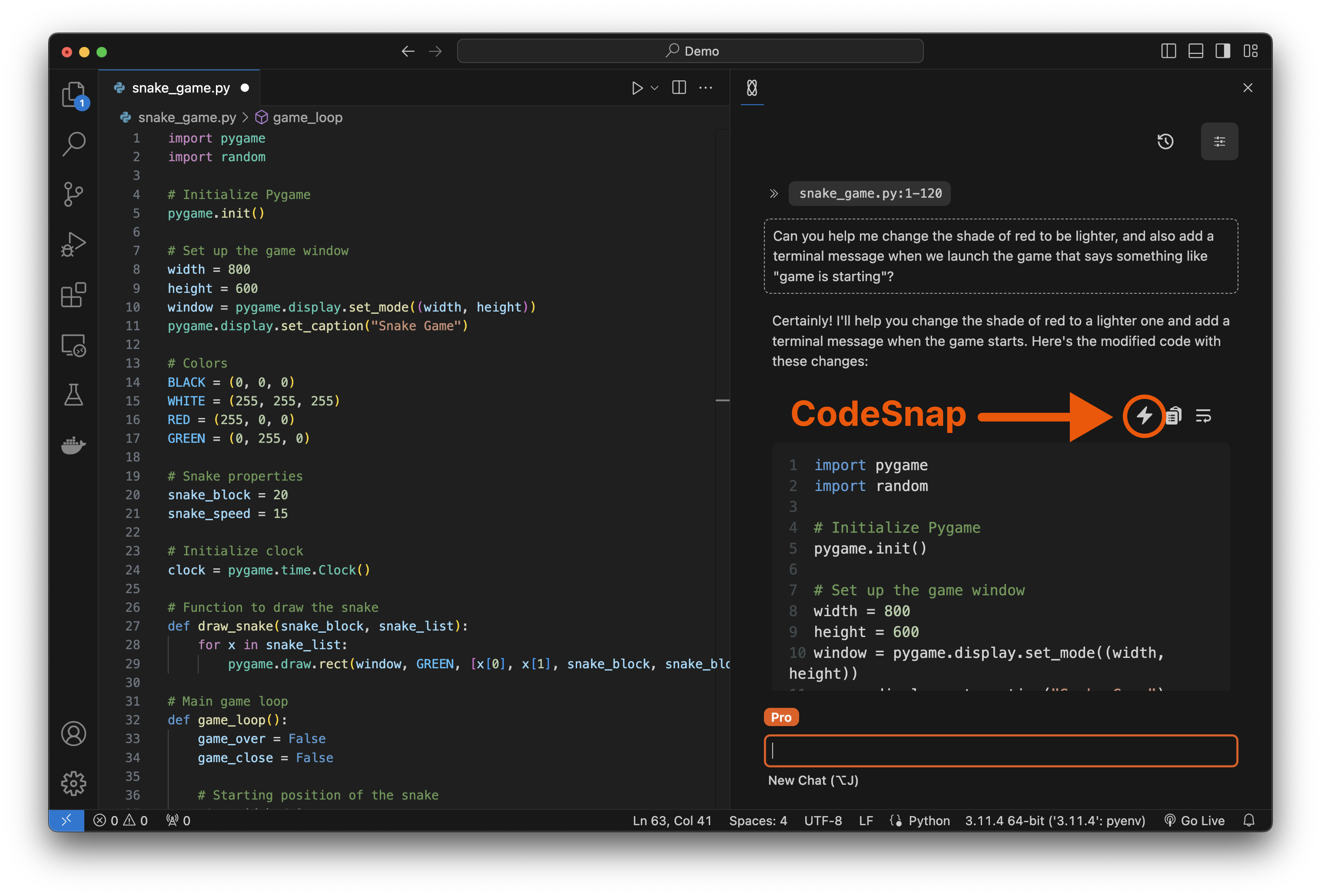 When a code snippet is generated in [Chat](features/chat), you'll see the [CodeSnap](features/codesnap) icon appear on top of the code block.
Immediately after clicking on the [CodeSnap](features/codesnap) icon, changes will be streamed into the current open file.
When a code snippet is generated in [Chat](features/chat), you'll see the [CodeSnap](features/codesnap) icon appear on top of the code block.
Immediately after clicking on the [CodeSnap](features/codesnap) icon, changes will be streamed into the current open file.
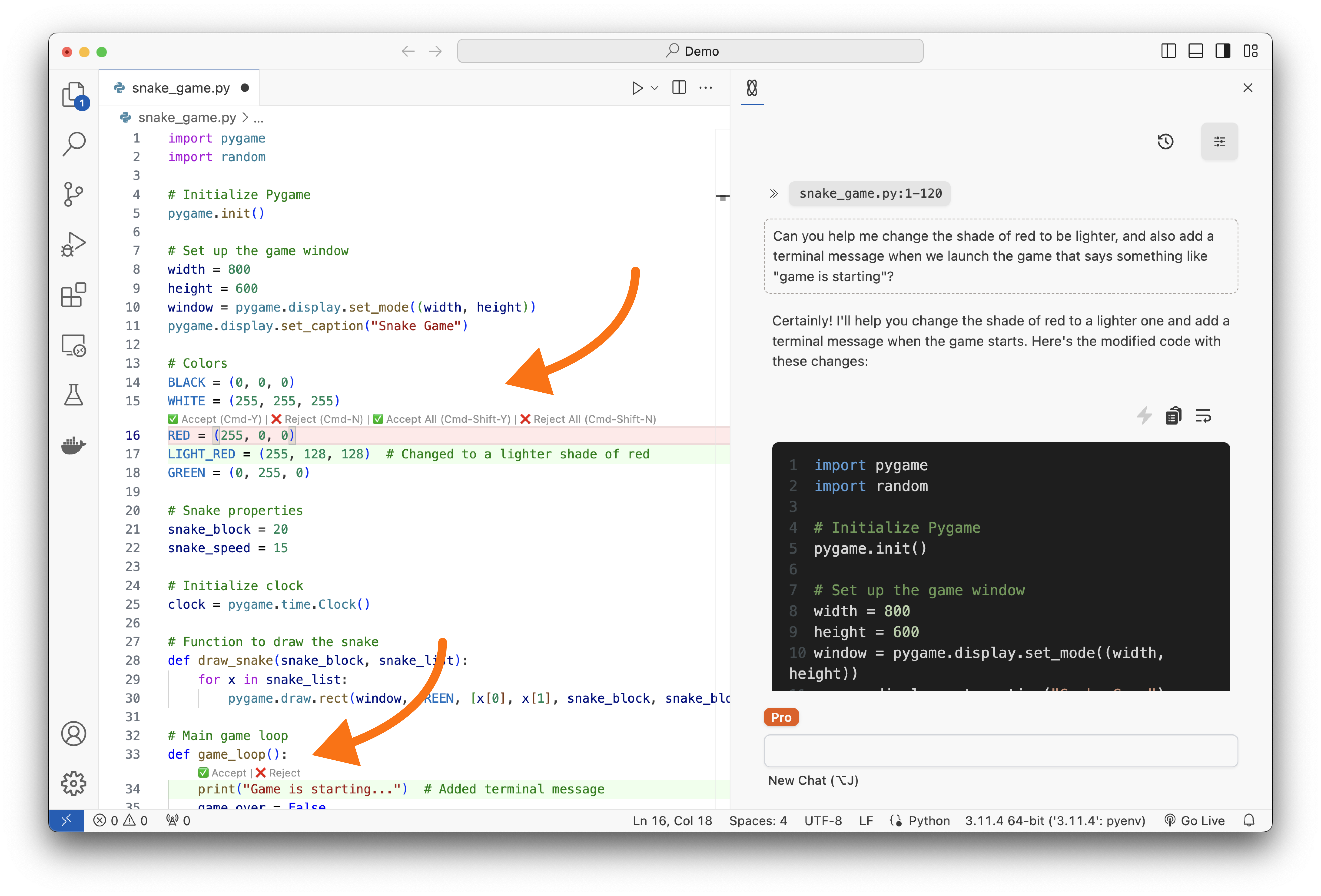
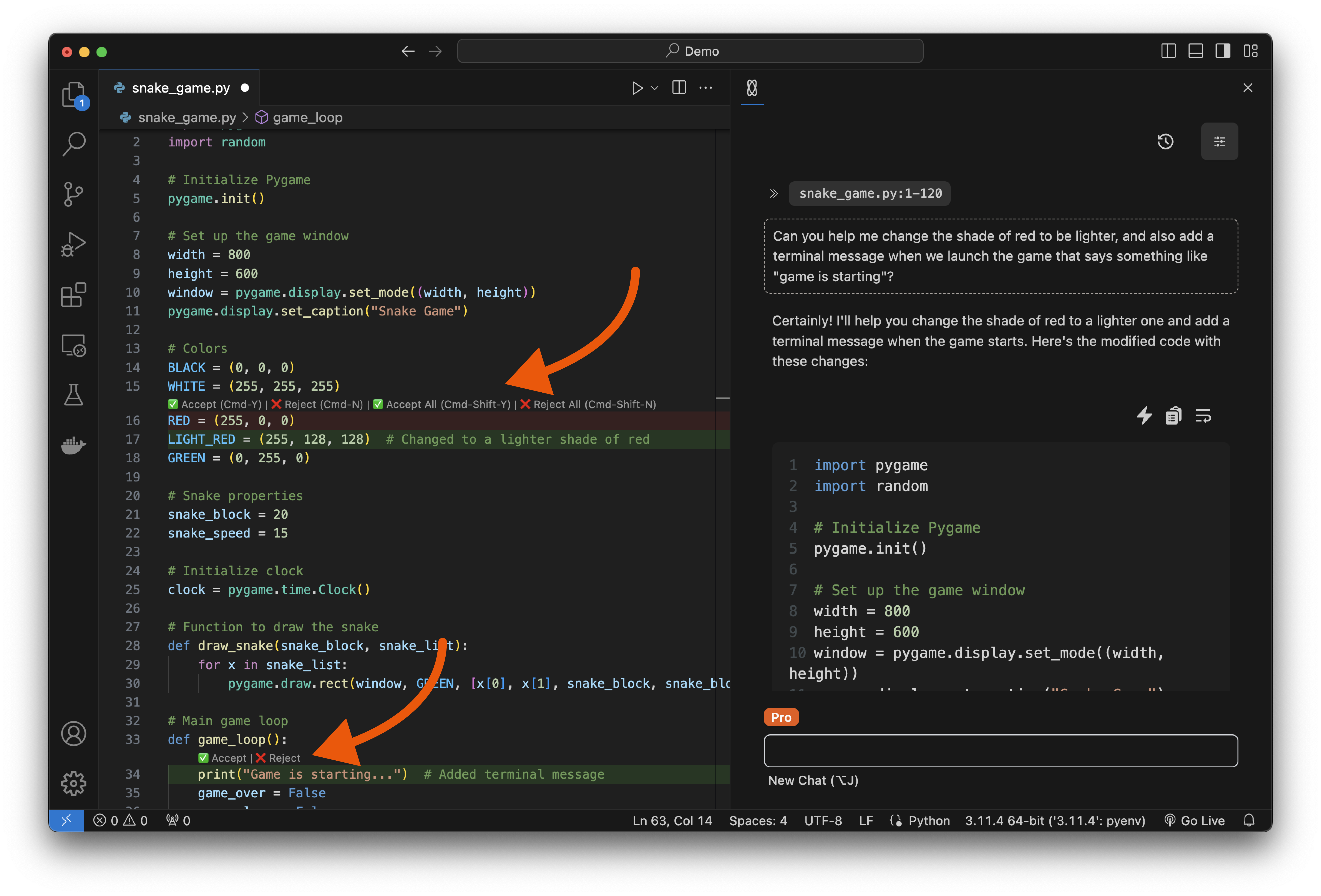 The changes made your code will be presented in diff style. Lines of code added will be highlighted in green, and lines of code removed will be highlighted in red.
You can accept all or reject all of the changes by clicking on `Accept All` or `Reject All` buttons at the top of the editor, or with the `Cmd+Shift+Y` and `Cmd+Shift+N` keyboard shortcuts.
Alternatively, you can accept or reject individual changes by clicking individually on the `Accept` or `Reject` buttons next to each change, or with the `Cmd+Y` and `Cmd+N` keyboard shortcut from top to bottom.
### FAQ
[CodeSnap](features/codesnap) is able to see the full contents of your current open file and the last 30k tokens from your [Chat](features/chat) conversation.
When you attach multiple files as context to a [Chat](features/chat) conversation, Double is able to see the files and file names, so it's able to suggest edits for multiple files by name.
All you have to do is open each file individually and click on the [CodeSnap](features/codesnap) icon to apply the specific changes.
The changes made your code will be presented in diff style. Lines of code added will be highlighted in green, and lines of code removed will be highlighted in red.
You can accept all or reject all of the changes by clicking on `Accept All` or `Reject All` buttons at the top of the editor, or with the `Cmd+Shift+Y` and `Cmd+Shift+N` keyboard shortcuts.
Alternatively, you can accept or reject individual changes by clicking individually on the `Accept` or `Reject` buttons next to each change, or with the `Cmd+Y` and `Cmd+N` keyboard shortcut from top to bottom.
### FAQ
[CodeSnap](features/codesnap) is able to see the full contents of your current open file and the last 30k tokens from your [Chat](features/chat) conversation.
When you attach multiple files as context to a [Chat](features/chat) conversation, Double is able to see the files and file names, so it's able to suggest edits for multiple files by name.
All you have to do is open each file individually and click on the [CodeSnap](features/codesnap) icon to apply the specific changes.